
1
Import the .rbxm file into Roblox Studio
Once purchased the product, Parcel will send you a DM where you can download the file. Once downloaded, drag this file into Roblox Studio and it should appear under workspace.
2
Move the folder to ServerScriptService
Once imported, it will be in workspace. Move the “Nebula Chat Logs” folder to be inside of ServerScriptService.
3
Open the configuration script
Expand the “Nebula Chat Logs” folder, and open the “Configuration” script. You should then see something like this: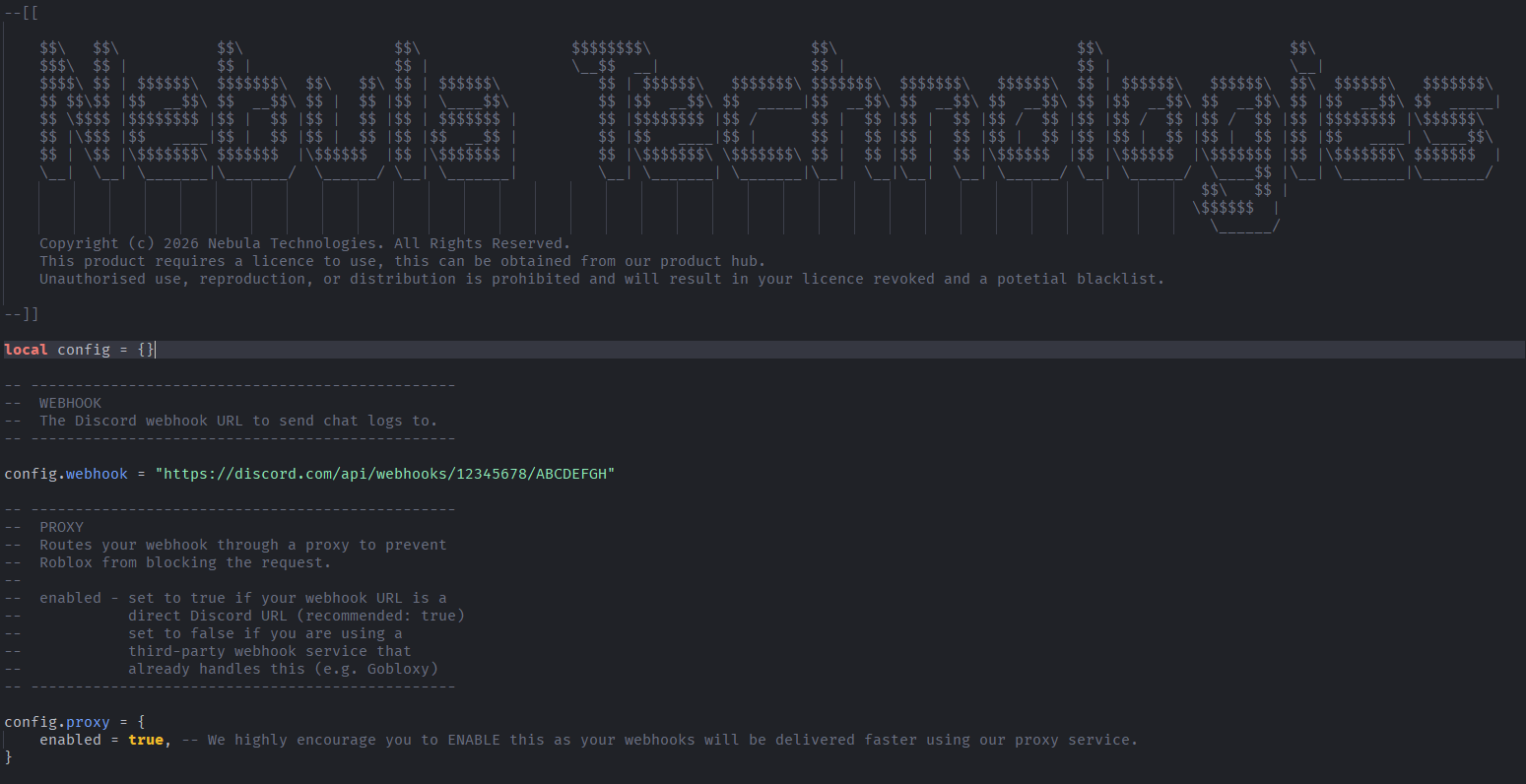
4
Add your Discord Webhook URL
Replace the discord.com webhook URL inside of the script with your own webhook URL provided by Discord. Do not use a proxy service, insert your bare discord.com/api/webhooks/ URL. The messages will still be delivered, as they will go through our own webhook proxy service.
5
Well Done!
The Chat Logs System from Nebula Technologies is now configured and fully working. You can see the untitled-page-2 page to configure some additional features that our product offers. However, the product is now working!